Grant Us Access to Your Accounts
To kickstart your campaign, we need access to your existing accounts. If you already have these accounts set up, follow the step-by-step instructions below to grant our team the necessary permissions.
This access allows us to analyze performance, optimize your online presence, and drive better results for your business. If you don’t have these accounts set up yet, no problem- we’ll take care of it for you. If you have any questions or need assistance, feel free to reach out to your customer service representative.
Use the quicklinks below or scroll down to do it manually.
Google and Meta Access QUICKLINK GoDaddy Access QUICKLINKGoogle Analytics Quickstart Guide
- Navigate to analytics.google.com.
- Login using the email address associated with the GA4 account.
- Select the profile you wish to provide access to us with the profile selector in the top left.
- After selecting the right profile bottom left click the gear icon that says admin.
- Next under property settings select Property Access Management.
- Top Right there should be a blue plus sign click that.
- Next add analytics@affordableimage.com to that list with owner permissions.
- Click save/send and you are done.
GBP Quickstart Video
- Navigate to business.google.com.
- Login using the email address associated with the GBP account.
- Select the profile listed to provide us access.
- Next page where it says profile strength there should be 3 dots. vertically stacked click on that.
- Select Business Profile Settings.
- Click People and access.
- Select Add in the top left.
- Select Owner.
- Enter in analytics@affordableimage.com
- Click Invite and you are done.
GSC Quickstart Video
- Go to Google.com and type in Google Search Console.
- It should be the first option navigate to the website, you are in the right place when the URL reads search.google.com.
- Click the Start Now button.
- Make sure the top left reads your website domain/URL.
- If not select a new one if applicable.
- If it lists the proper domain at the bottom Left click the gear icon. labeled Settings.
- Click Users and Permissions.
- Click Add User.
- Enter in analytics@affordableimage.com with the permission of owner.
- Click Add and you are done.
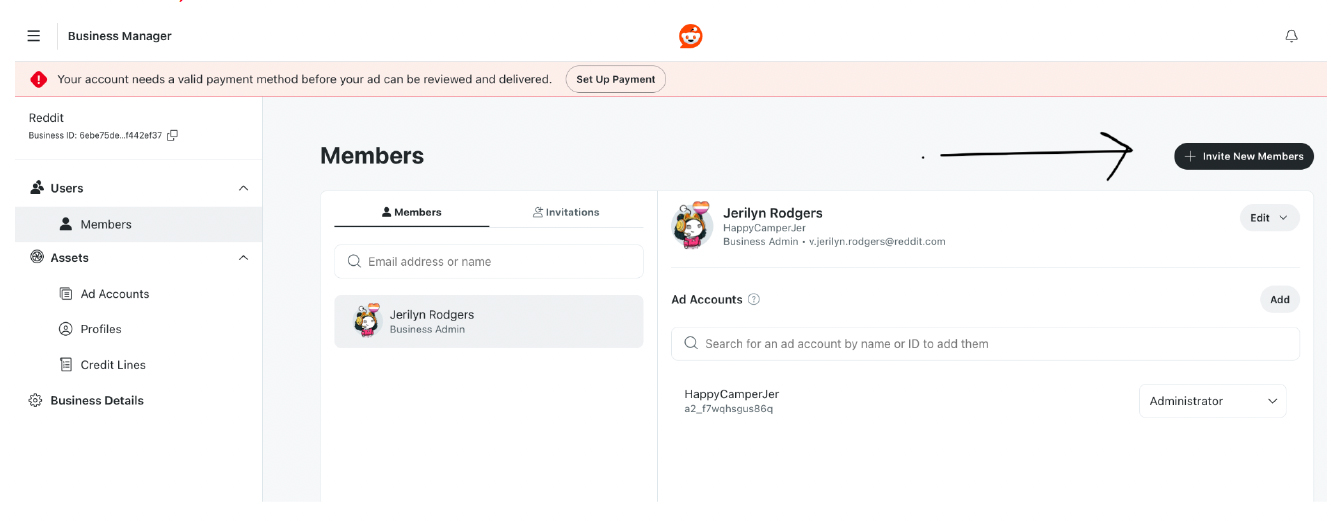
Instructions to Manage your Client Account(s) from your Agency Account
- From within the “client(s)” ad account, using the hamburger menu on the top left, select “users;”
- This will take you to the screen below where you will “Invite New Members;”
- You will then enter the email address assigned to your agency account, select Business Admin and click next.